A movie, television episode, or documentary may fail to appear under the title a viewer expects. The service may use a translated title, an alternate spelling, the original-language title, or a different release year. Regional availability, profile restrictions, and incomplete catalog metadata can also affect the result. On a personal Plex or Jellyfin server, a different problem may be responsible. The file may be outside the configured library path, excluded from scanning, unreadable because of permissions, incorrectly named, or matched to the wrong database entry. Cast, production-company, and distributor information can help identify the work, but no single search method works across every platform.
How to Find “Hidden” Media Content Using Cast, Crew, and Distributor Linkages
Begin with information that is unlikely to change between regional releases: the director, lead actors, production company, original release year, and country of production.
1. Cross-Searching via “Common Collaborators”
Some streaming services allow searches by actor or director. Netflix, for example, states that its search bar can accept titles, actors, categories, genres, and other terms. It also supports voice searches such as movies by a named director or films featuring a particular actor.
Do not assume that entering two names will make the platform calculate every production they share. Search one person at a time and open the available cast or creator results. If the app provides a person page, inspect the titles listed there.
For a wider web search, combine identifying details:
director name + actor name + release year
production company + documentary subject
original title + international distributor
A distributor’s website or press release may confirm an alternate title, territory, or release date. It does not prove that the film is currently available on a particular streaming service.
2. Querying “Character Description Keywords + Actor Name”
Descriptive searches can help when the title is forgotten or translated differently. A query such as Keanu Reeves baseball movie may identify Hardball, but this type of natural-language matching is not guaranteed inside every streaming app.
Use a general search engine when the platform search returns nothing. Include one actor, a distinctive plot element, the approximate release period, and the format:
actor + plot detail + movie
presenter + subject + documentary
character name + episode + series
Once the likely title is found, return to the streaming service and search its official title, original title, or release year. A correct identification does not override regional licensing. The film may simply be unavailable in the account’s country.
3. Filtering Content by Country of Origin and Audio Language
Language filters are useful when a localized title is unknown. Netflix provides a Browse by Languages page for original language, dubbing, and subtitle searches. Available filters differ across services and devices.
A production-country filter is less common. When it is unavailable, search the country together with the director, actor, studio, or subject.
Original audio language and country of production are different fields. A multinational film may be produced in one country, financed in another, and contain dialogue in several languages. Use both fields as clues rather than treating either as a definitive identifier.
Resolving “No Results Found” on Plex/Jellyfin by Restructuring File IDs
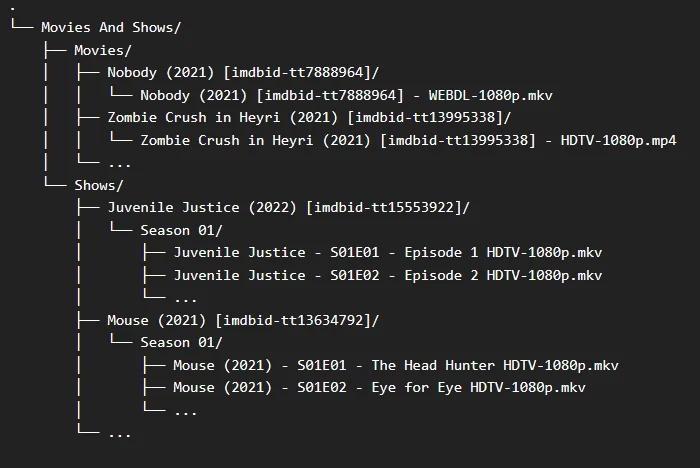
Plex and Jellyfin can use external database identifiers to improve matching, but they require different naming formats.
1. Nature of Agent Fix Match Failures
Plex separates library scanning from metadata matching. The scanner first finds media files; the metadata agent then attempts to identify them. Poor naming can cause a title to remain unmatched, be attached to the wrong movie, or fail to appear as expected. Plex identifies naming as a common reason content is not found, but permissions, exclusions, inaccessible storage, mixed media types, and unsupported organization can also be responsible.
Release information such as 2160p, WEB-DL, codec names, and release-group tags should not replace the title and year. They may be retained after the main identifying portion when the server’s naming rules support them.
Before renaming everything, confirm that the file is inside the correct library folder, the server account can read it, and no .plexignore or Jellyfin exclusion rule is hiding it.
2. Forced ID Matching via Folder and File Syntax
For the current Plex Movie agent, an IMDb or TMDB identifier can be placed in curly braces:
/Movies/Title (Release Year) {tmdb-ID}/Title (Release Year) {tmdb-ID}.extValidated Plex example:
/Movies/Batman Begins (2005) {tmdb-272}/Batman Begins (2005) {tmdb-272}.mp4Plex requires the form {source-id}, such as {tmdb-272} or {imdb-tt0372784}.
Jellyfin uses square brackets and different provider labels:
/Movies/Title (Release Year) [tmdbid-ID]/Title (Release Year) [tmdbid-ID].extValidated Jellyfin example:
/Movies/Spider-Man Across the Spider-Verse (2023) [tmdbid-569094]/
Spider-Man Across the Spider-Verse (2023) [tmdbid-569094].mp4
Jellyfin documents [tmdbid-...], [tvdbid-...], and [imdbid-...] identifiers.
Do not use the Plex curly-brace syntax as though it were the official Jellyfin syntax. A colon is also unsuitable in Windows filenames, but the larger issue is following the exact convention expected by the selected server.
3. The “Plex Dance” Workflow to Clear Metadata Cache
Renaming a file does not always require a full “Plex Dance.” First run Scan Library Files, then use Match or Fix Match on the incorrect item. Refresh Metadata when the match is correct but the description, artwork, or credits are outdated.
When Plex continues to retain an old entry, the following recovery sequence may help:
[1. Move media folder entirely outside Plex library path]
│
▼
[2. Run “Scan Library Files” ➔ Confirm removal and empty trash if appropriate]
│
▼
[3. Rename folder and file using the correct Plex syntax]
│
▼
[4. Move the folder back into the library path ➔ Run “Scan Library Files”]
“Clean Bundles” removes unused metadata bundles; it is not a universal cache-repair button. Back up important custom metadata and avoid emptying trash while a drive is temporarily disconnected, because Plex may treat inaccessible content differently to protect the library.
Automated Tools for Metadata Cleanup and Mapping
Automation reduces repetitive renaming, but every match should be reviewed before thousands of files are changed.
1. Metadata Scrapers & Renamers
TinyMediaManager: This tool manages movie and television metadata, artwork, filenames, and NFO files. Jellyfin can read local NFO metadata, while the server’s library settings determine whether additional online metadata is also fetched.
FileBot: FileBot can match and rename media through customizable naming expressions. It exposes database identifiers that can be included in folder or file names, but users must select an output format compatible with their server.
Sonarr & Radarr: Sonarr manages television-series files, while Radarr manages movies. They can organize and rename imported files and may be configured to notify a media server after changes. They are collection-management tools, not universal repair utilities for every metadata database.
2. Library Analytics and Optimization with MediaLyze
MediaLyze is a real open-source project, but it remains under active development. Its stated focus is technical analysis of self-hosted libraries, including scanning, normalization, statistics, and file inspection.
It can help review codec, resolution, bitrate, storage, and possible duplicate patterns. It should not be described as a guaranteed detector of corrupted streams or as an official Plex or Jellyfin maintenance component.
Standardized Registration and Indexing Guidelines for IMDb and Wikipedia
Independent filmmakers can submit accurate information to recognized databases, but neither IMDb nor Wikipedia should be treated as an automatic search-ranking tool.
1. The Essential Role of IMDb Registration
IMDb accepts new-title submissions that meet its eligibility, formatting, existence, and verification requirements. A submission can include cast, crew, companies, release dates, and supporting evidence. Acceptance is not automatic.
IMDb is an important entertainment database, but it is not proven to be the single master source directly scraped by Google, Apple TV, and every streaming service. Each platform may use several licensed, internal, and public metadata sources.
Submit only documented credits and release information. A contributor account is not an official verification of every person or company named in the entry.
2. Guidelines for Wikipedia Media Entries
A Wikipedia article should not be created merely to improve visibility. English Wikipedia generally presumes a film is notable when it has received significant coverage in reliable sources independent of the production. There is no fixed rule requiring exactly two or three articles.
Filmmakers, distributors, and marketers have a conflict of interest when writing about their own work. They should disclose that relationship and avoid promotional claims.
A typical film article may contain:
├── 1. Lead Paragraph
├── 2. Plot Summary
├── 3. Cast
├── 4. Production and Release
└── 5. Reception and Awards
Sections should reflect reliable available sources. Creating a Wikipedia page does not guarantee Google Knowledge Graph inclusion or better search ranking.
Integrating Schema Markup via Google Structured Data Markup Helper for Web Video
Structured data describes information already visible on a page. It does not make unavailable content appear inside Netflix, Plex, or another private catalog.
1. Concept of Schema.org Structured Data
Movie markup can identify a movie’s name, image, director, and related details. Google’s documented Movie rich-result feature is intended for lists of films and may produce a mobile movie carousel.
Use VideoObject when the page contains a video that users can actually watch. Google requires the markup to describe the page truthfully and states that VideoObject should be placed on a watch page.
Do not label a distributor as the production company unless it actually produced the work.
2. Step-by-Step Guide with Google Structured Data Markup Helper
Open Google Structured Data Markup Helper.
Select the relevant type, such as Films or TV Episodes. The tool currently lists both among its supported website categories.
Enter a public URL or paste the page’s HTML.
Tag only information displayed on the page, such as:
- Name
- Director
- Actor
- Image
- Publication or release information
- Production company, when factually correct
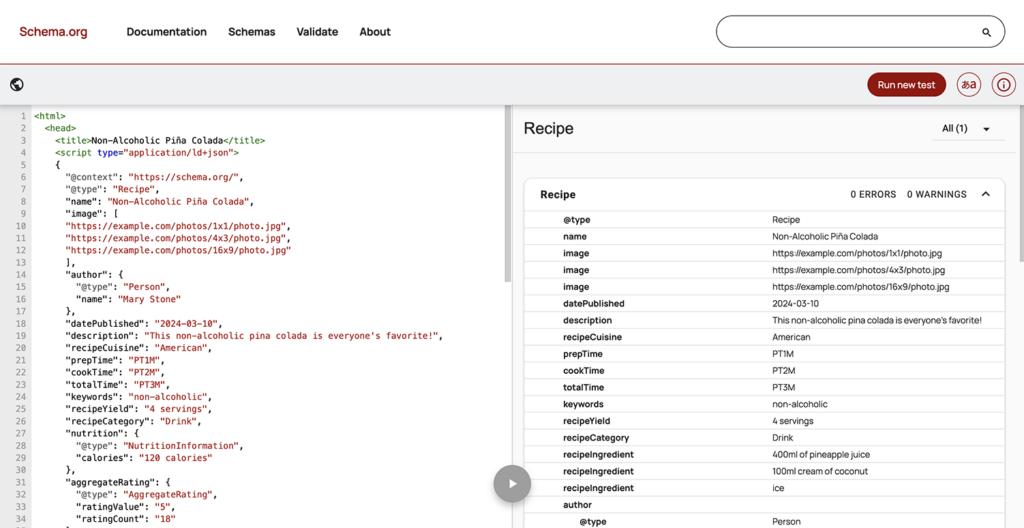
A hypothetical syntax example is:
{
  "@context": "https://schema.org",
  "@type": "Movie",
  "name": "Example Film",
  "image": "https://example.com/images/example-film.jpg",
  "director": {
    "@type": "Person",
    "name": "Example Director"
  },
  "actor": [
    {
      "@type": "Person",
      "name": "Example Actor"
    }
  ],
  "productionCompany": {
    "@type": "Organization",
    "name": "Example Production Company"
  },
  "datePublished": "2026-01-15"
}
Select Create HTML and choose JSON-LD. Google identifies JSON-LD as the default and preferred output format. The generated script may be inserted into the body of the existing page; it does not have to be placed specifically in the <head>. Test the result with Google’s Rich Results Test before publishing.
Metadata can help identify and organize media, but it is not one universal key shared by every streaming platform, media server, database, and search engine. Viewers should begin with alternate titles, cast, director, language, production company, release year, and regional availability. Plex administrators should use Plex’s curly-brace identifier syntax, while Jellyfin administrators should use its documented square-bracket format.
IMDb submissions, Wikipedia articles, and structured data each have separate purposes and rules. None can force a commercial streaming service to carry a title or guarantee that Google will rank it. The reliable process is to identify the work through verified details, apply the correct metadata convention for the target system, rescan or rematch the library, and confirm the result on the exact platform where the content should appear.